Pinterest for bloggers isn’t a “nice to have” anymore — it’s one of the only traffic sources left that actually compounds over time, rewards good content, and doesn’t require you to post every single day to stay relevant.
And yet most bloggers are getting it completely wrong. Not because they’re lazy or uninformed, but because the advice online is either outdated, generic, or written by people who’ve never actually managed a blogger’s Pinterest account under real traffic pressure. This guide changes that.
Key Takeaways
- Pinterest functions as a visual search engine, allowing your pins to drive compounding blog traffic for years. Focus primarily on outbound clicks over saves or impressions, as actual website visits are what deliver real results.
- Name your boards using specific search keywords like “30-Minute Weeknight Dinners” rather than broad categories like “Dinner Ideas.”
- Create 3 to 5 unique pin designs per blog post to rank for multiple search terms and maximize your reach.
- Maintain daily consistency instead of dumping pins in bulk; pinning 7 times daily yields far better long-term growth than posting 50 pins once a week. Expect compounding traffic to begin around Month 3, right after the point where most creators quit.
Why Pinterest Is Different From Every Other Platform You’ve Tried
Most traffic sources are rented. You show up on Instagram every day or your reach disappears. You write for Google and wait 6 months praying the algorithm agrees with you. You run ads and the moment you stop paying, the traffic stops too.
Pinterest runs on a completely different logic. It’s a visual search engine — users type what they’re looking for, find content that matches, and click through to read it. Your pins don’t expire when the week ends. A pin you publish today can drive meaningful traffic to your blog two, three, even five years from now.
For bloggers specifically, this matters enormously. You’ve already done the hard work — writing content, building expertise, creating something worth reading. Pinterest’s job is to surface that content to people who are actively searching for it. Your job is to make sure the technical setup lets Pinterest do that effectively.
Step 1: Set Up a Pinterest Business Account Properly
If you’re running a personal Pinterest account for your blog, stop. A business account isn’t just a branding upgrade — it unlocks Pinterest Analytics, Rich Pins, and the ability to claim your website. All three are non-negotiable if you’re serious about driving blog traffic.
To switch from personal to business:
- Go to pinterest.com and log into your account
- Click your profile photo → Settings → Account Management
- Select “Convert to business account”
- Choose “Blogger” or “Media” as your business type
- Add your website URL
If you’re starting fresh, go to business.pinterest.com and create a new account directly. Don’t use a personal account and try to manage both — it creates category confusion for the algorithm.
Claim Your Website — Don’t Skip This
After switching to a business account, claim your blog domain. Pinterest gives you a snippet of code to add to your site header (or you can verify via your DNS settings). Once claimed, your profile photo appears on every pin that links to your blog, which builds brand recognition and click trust over time.
Pro Tip: If your site runs on WordPress, the Yoast SEO plugin has a Pinterest verification field built in under its social settings tab — paste the verification code there and it handles the rest.
Step 2: Keyword Research Before You Touch Anything Else
This is the step most bloggers skip. They set up boards with cute names, design some pins, and wonder why nothing’s showing up in search. Keywords are the foundation — and Pinterest’s own search bar is your best free research tool.
Here’s the exact process:
Step 1 — Open Pinterest in incognito mode. This removes personalization from your search results so you see what everyone else sees.
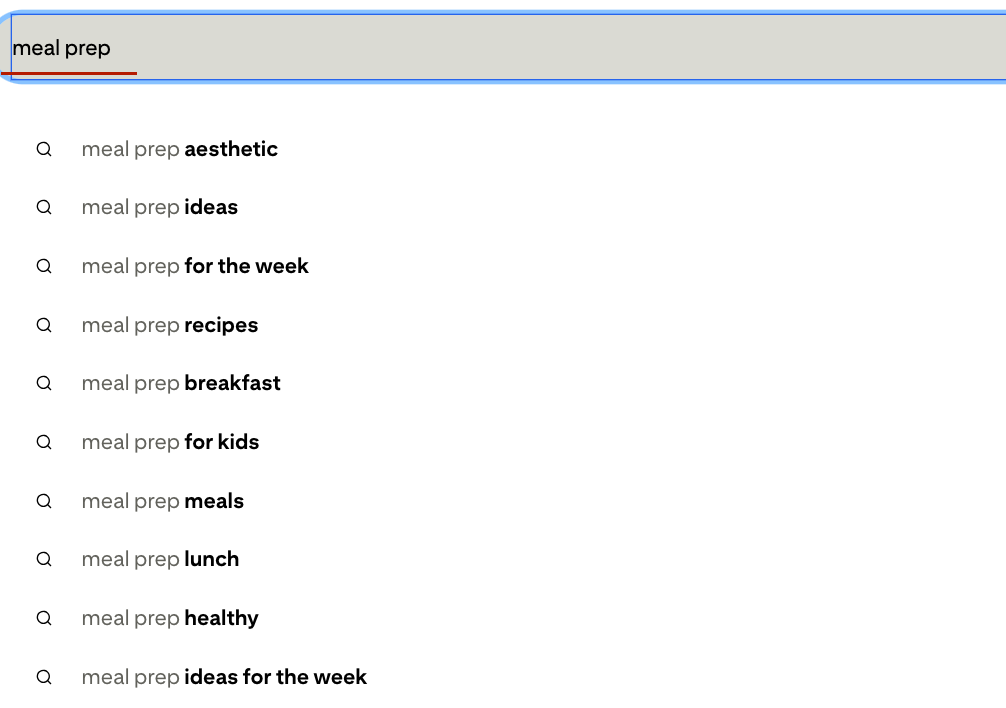
Step 2 — Type your broad niche topic into the search bar and pause before hitting enter. The autocomplete suggestions are real searches made by real users. Write them all down.
Step 3 — Hit enter and look at the guided search bubbles that appear below the search bar. These are interest clusters Pinterest uses to categorize content. Every cluster that’s relevant to your blog is a keyword opportunity.
Step 4 — Open top-ranking pins in your target search and read their descriptions. The phrases that repeat across multiple top-performing pins are the phrases Pinterest’s algorithm rewards for that search.
Step 5 — Check Pinterest Trends (trends.pinterest.com) to identify seasonal search spikes in your niche. Food bloggers: “pumpkin recipes” starts trending in August, not October. Finance bloggers: “budget planning” spikes in January and September. Getting there 6–8 weeks early is the difference between riding a trend and missing it entirely.
Step 3: Build Your Board Structure Like a Keyword Map
Your boards aren’t just organizational folders. Pinterest reads your board names, descriptions, and categories to understand what your account is about — and uses that to decide which searches to surface your content in.
Rules for board setup that actually drives traffic:
- Name boards with search phrases, not themes. “30-Minute Weeknight Dinners” outperforms “Dinner Ideas” for SEO purposes. “Budget Travel Europe” outperforms “My Travel Pins.” Treat every board name as a keyword.
- Write a board description for every single board. Two to three sentences, naturally including 2–3 keyword variations. This is consistently one of the most skipped steps in Pinterest optimization — which makes it one of the highest-leverage opportunities.
- Cover your niche categories properly. If you run a personal finance blog, you probably need boards for budgeting, debt payoff, saving money, investing basics, and frugal living — each as a separate board with its own keyword focus.
- Start with 8–12 boards, all in your niche. Do not create boards for things that have nothing to do with your blog. A food blogger with a “Dream Wedding Venues” board is sending mixed signals about what their account covers.
- Secret boards are fine for saving inspiration — they don’t dilute your niche signal because Pinterest doesn’t index secret boards in search.
Pro Tip: Once you have your boards set up, go back and check your board descriptions monthly. Pinterest’s algorithm rewards fresh, relevant descriptions — updating them with current seasonal keywords keeps your boards visible even for content you published a year ago.
Step 4: Pin Design That Stops the Scroll and Gets the Click
Here’s the uncomfortable truth about Pinterest pin design: pretty doesn’t equal effective. The pins that rack up saves aren’t always the most beautifully designed — they’re the ones with the most specific, curiosity-creating headlines and the clearest implied value behind the click.
What actually works in 2026:
- Tall 2:3 ratio pins (1000 x 1500px). Pinterest displays vertical content more prominently in the feed. Shorter pins get physically smaller on screen and compete at a disadvantage.
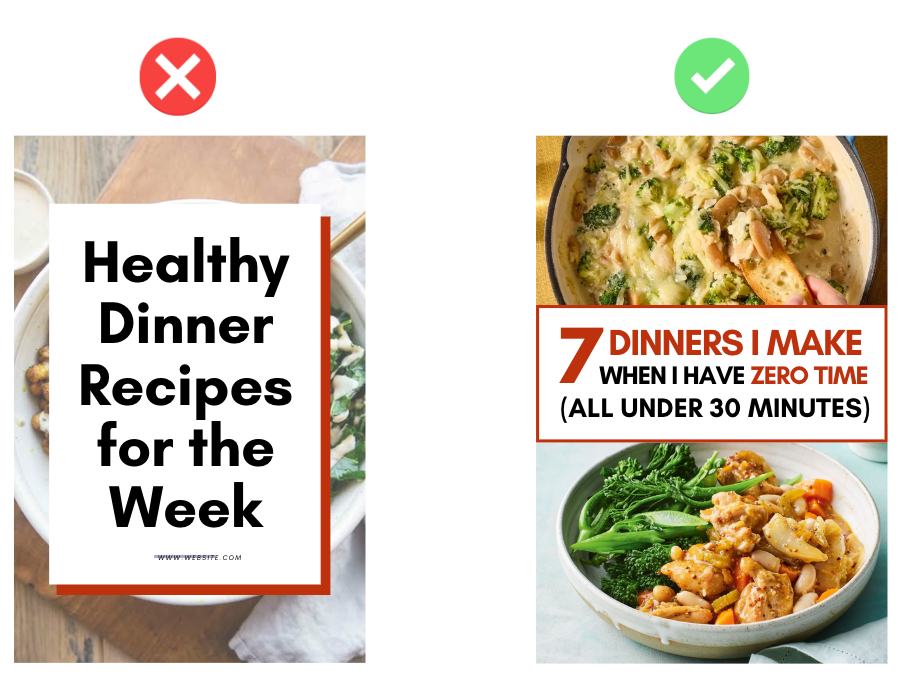
- Bold, large text overlay that’s readable at thumbnail size. Your pin will appear at roughly 120px wide on a mobile phone. If the text requires zooming to read, you’ve already lost the click.
- A specific headline, not a generic topic. “How I Grew My Food Blog to 50K Monthly Sessions” beats “Food Blogging Tips.” “The $47 Budget That Covers a Week of Dinners for Four” beats “Budget Meal Planning.” Specificity signals value. Vagueness signals generic.
- High-contrast colors for text on background. Dark text on light backgrounds or light text on dark images — never medium-contrast combinations that make text hard to parse.
- Consistent branding across all pins. Use the same 2–3 fonts, the same color palette, and include your blog name or domain on every pin. This is how readers start recognizing your content in the feed even before they read the headline.
What kills your click-through rate (CTR):
- Pins that tell the whole story visually — leave something for the blog post
- Generic stock photos that look identical to 200 other pins
- No text overlay at all
- Cluttered layouts with too many elements competing for attention
- Pin designs that look great on desktop but are unreadable on a 375px mobile screen
If you want to understand exactly why your click-through rate might be stalling, the breakdown in Why Your Pins Aren’t Getting Clicks (And How to Fix It) covers the specific diagnosis process we use when auditing accounts.
Step 5: Write Pin Descriptions That Actually Get Found
Pinterest indexes your pin description as searchable text. If you’re leaving descriptions blank — or writing “Check out my latest post!” — Pinterest has no context for what your pin is about and no way to show it in relevant searches.
The anatomy of a high-performing pin description:
- Open with your primary keyword — naturally, not forced. If your pin links to a post about meal prepping on a budget, your description should start with something like “Meal prepping on a budget doesn’t have to mean boring food or eating the same thing every day…”
- Include 2–3 related keyword variations in the body. Pinterest’s algorithm reads the entire description for topical relevance — “budget meal prep,” “cheap weekly meal plan,” and “grocery shopping on a budget” all reinforce the same cluster.
- Make the description useful on its own. A two-sentence description that tells readers what they’ll find in the post performs better than keyword lists or generic phrases.
- End with a soft call to action. “Save this for your next grocery haul” or “Click to grab the full weekly plan” closes the description with a reason to engage. Don’t overthink it — keep it natural.
Length: 100–200 words is the sweet spot. Long enough to give Pinterest real keyword data, short enough that it reads like a useful preview rather than an essay.
Step 6: Build a Posting Strategy That Compounds
One of the most common questions when getting started with Pinterest to drive traffic to your blog is how often to post. The answer has changed significantly over the past two years.
What the data actually shows in 2026:
- 5 to 15 fresh pins per day is the current consensus for accounts building consistent traffic — “fresh” meaning original pins you created, linking to your own blog content
- Spreading pins throughout the day outperforms dumping all 10 at once — Pinterest’s algorithm reads consistent activity as an account health signal
- Multiple pin designs per URL is one of the most underused strategies — create 3 to 5 different pins for each blog post (different headlines, different images, same destination URL) and publish them on a staggered schedule over weeks or months
- Group boards are mostly dead for traffic generation — focus on your own boards with strong keyword optimization instead
On scheduling tools: Tailwind remains the most reliable option for batch-scheduling Pinterest content. It lets you create pins in bulk, schedule at optimal times, and monitor performance — which saves hours compared to manual daily posting. That said, the tool is only as effective as the strategy behind what you’re scheduling.
FYI — if you want the honest breakdown of what the timeline actually looks like before results start compounding, how long Pinterest really takes to work covers the month-by-month benchmarks without the usual over-optimistic cheerleading.
Step 7: Optimize Your Website for Pinterest Traffic
Getting people to click your pin is half the battle. What happens when they land on your blog determines whether that click turns into ad revenue, an email subscriber, or an affiliate sale.
The Pinterest-to-blog experience:
- Your page needs to load in under 3 seconds on mobile. Pinterest users are overwhelmingly on mobile. A slow-loading page means a fast bounce — and a high bounce rate signals to Pinterest that your content disappointed the user, which hurts future distribution.
- The landing page headline must match what the pin promised. If your pin says “The 7-Day Budget Meal Plan” and the post title says “Meal Planning Ideas,” you’ve created a mismatch. Users feel deceived and bounce. Match the expectation you set.
- Add a “Save to Pinterest” button on every post image. Most themes include this or you can add it with a plugin like Tasty Pins. Making it easy for readers to save your content turns every blog visitor into a potential Pinterest distributor.
- Rich Pins pull your post title and description automatically. Once you’ve claimed your website and enabled Rich Pins, Pinterest fetches your post metadata directly — which keeps your pin information accurate and increases trust signals in the feed.
Step 8: Track the One Metric That Actually Matters
Most Pinterest tutorials tell you to track impressions and monthly viewers. IMO, this is one of the reasons so many bloggers feel like Pinterest “isn’t working” even when it is — they’re watching vanity metrics instead of the only number that pays their bills.
The only metric that matters for bloggers: outbound clicks.
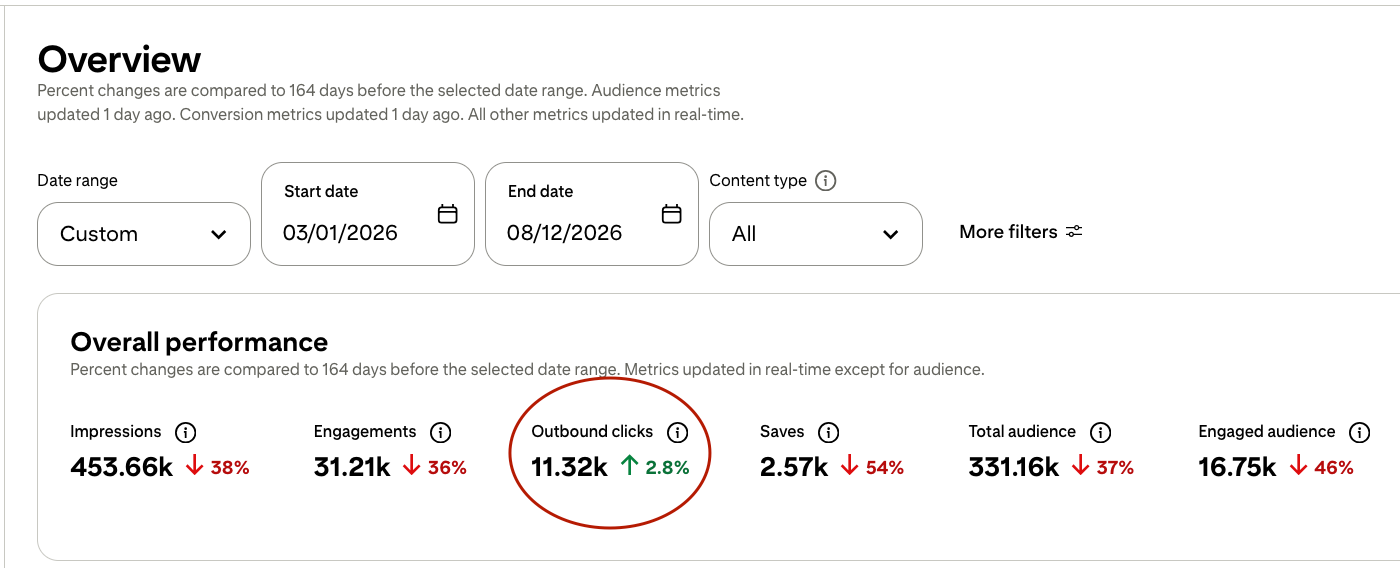
Outbound clicks are the number of people who clicked from your Pinterest pin to your blog. That’s it. Not saves. Not impressions. Not monthly viewers. Outbound clicks are what drive ad revenue, what build email lists, what generate affiliate sales.
How to find it: Pinterest Analytics → Overview → Toggle the metric dropdown to “Outbound Clicks” → View by pin, by board, or by time period.
What to do with the data:
- Which pins are generating the most outbound clicks? Create 3 more versions of those pins with different headlines and publish them on a schedule.
- Which boards are sending the most traffic? Strengthen those boards with more content, better descriptions, and higher-frequency pinning.
- Which pin designs are getting saves but not clicks? Those pins are visually engaging but not creating enough curiosity to convert — tighten the headline or change the CTA.
For a deeper look at how to read Pinterest Analytics properly — including what to look for in the annotation data most bloggers miss — the full Pinterest SEO guide for bloggers covers the analytics interpretation process in detail.
Common Pinterest Mistakes vs. What Actually Works
| What Most Bloggers Do | What Actually Drives Traffic |
|---|---|
| Generic board names (“Food,” “Travel,” “Tips”) | Keyword-specific board names (“Budget Travel Europe,” “30-Minute Dinner Recipes”) |
| Blank or one-line pin descriptions | 100–200 word keyword-rich descriptions with a soft CTA |
| One pin design per blog post | 3–5 different pin designs per URL, tested over weeks |
| Posting in sporadic bursts | 5–15 fresh pins daily on a consistent schedule |
| Tracking impressions and monthly viewers | Tracking outbound clicks exclusively |
| Group boards as primary distribution | Own boards with strong keyword and niche focus |
| Pins that tell the whole story | Pins that create curiosity and make the click necessary |
| Cute board names that feel personal | Board descriptions that read like search-optimized landing pages |
| Giving up at month 2 | Staying consistent through month 3 when compounding actually starts |
When Pinterest Management Gets Too Big to DIY
Here’s where most Pinterest guides stop being honest with you. Building a proper Pinterest system — keyword research, board optimization, custom pin design, scheduling, analytics review, strategy refinement — takes somewhere between 10 and 20 hours per month to do well. That’s not a number I’m inflating. That’s what it actually takes when you’re doing it at a standard that produces compounding results.
Most bloggers either don’t have those hours, or they have them but they’d rather spend them writing the posts that give Pinterest something worth distributing. That’s not a failure of commitment — it’s a reasonable business decision.
If you’re at the point where Pinterest is clearly the right investment for your blog but the execution is what’s getting in the way, that’s exactly the scenario AM Socials was built for. I run Pinterest accounts exclusively for bloggers — strategy, custom pin design, keyword-optimized descriptions, daily scheduling, monthly reporting — all of it handled so you can focus on creating content.
The fastest way to see what’s specifically holding your account back is a free Pinterest audit — a personalised video review of your account showing you exactly what’s broken and what I’d fix first. No templates, no automated report. Request your free audit here →
Frequently Asked Questions
How long does it take for Pinterest to drive real blog traffic?
Most bloggers see early signals — some outbound clicks, a few saves on new pins — within the first 30 to 60 days. Real, consistent, compounding traffic usually takes 90 to 120 days to feel meaningful. That timeline assumes you’re posting consistently, your keyword strategy is solid, and your pin designs are actually generating clicks rather than just saves.
The accounts that plateau indefinitely almost always have one of three problems: weak keyword targeting, inconsistent posting schedules, or pin designs that get saves but create no curiosity to click. All three are diagnosable and fixable. The ones that break through month 3 and start seeing consistent month-over-month growth are the ones who stayed consistent while diagnosing and fixing those problems rather than quitting.
Do I need a lot of blog posts before starting on Pinterest?
You don’t need a massive content library — 15 to 20 solid blog posts is a reasonable baseline to start with. Pinterest growth comes from creating multiple pin designs per URL and staggering their publication over time, which means 20 posts gives you 60 to 100 pins if you create 3 to 5 designs per post.
What matters more than quantity is that your content is actually Pinterest-friendly — meaning it answers a specific question, shows a specific result, or solves a specific problem that Pinterest’s audience is actively searching for. A how-to post, a recipe, a budget breakdown, a step-by-step guide — these formats perform well on Pinterest regardless of how many posts you have total.
Does follower count matter on Pinterest for bloggers?
Much less than people think. Pinterest is a search engine first — distribution is driven by keyword relevance, pin quality, and account consistency, not by how many people follow you. A brand new account with zero followers and a well-optimized pin can rank for a specific keyword and drive meaningful traffic within weeks.
Follower count matters more for idea pin engagement and for the initial distribution boost that Pinterest sometimes gives to accounts with large followings. But for driving outbound clicks back to a blog — which is the only goal that actually matters — keyword strategy consistently outperforms follower count.
Why are my Pinterest impressions high but my outbound clicks low?
High impressions with low clicks is one of the most common Pinterest frustrations — and it’s almost always a pin design or headline problem, not an algorithm problem. Impressions mean Pinterest showed your pin to someone. Clicks mean that person found the pin compelling enough to leave Pinterest and visit your blog.
The gap between those two numbers closes when your pin headline is specific and curiosity-creating rather than generic and descriptive, when your pin design teases value rather than delivering it completely on the image, and when the content type matches what Pinterest’s audience actually wants to click through to. If you’re getting saves but not clicks, your pin is visually interesting but not creating enough pull toward the blog post itself — that’s usually a headline issue.
Should I use Tailwind or just pin manually?
Tailwind is worth it once you’re posting consistently enough that manual pinning becomes genuinely time-consuming — roughly when you’re publishing 7+ pins per day. Below that, manual pinning works fine. Above it, Tailwind’s batch scheduling saves significant time and its SmartSchedule feature posts at optimal times for your specific audience automatically.
The important thing is that the tool doesn’t replace strategy. Tailwind schedules whatever you give it — if your pins have weak headlines, vague descriptions, and no keyword targeting, Tailwind will just schedule those weak pins more efficiently. Fix the strategy first, then scale it with a scheduling tool.
How many pin designs should I create per blog post?
The minimum I’d recommend is 3 — ideally 5 for your cornerstone content. Each design should test a different headline angle, a different image composition, or a different color approach. Pinterest treats each pin as a separate asset, meaning one URL can have multiple pins competing in search at the same time.
This matters because what resonates with Pinterest’s algorithm for one search query might be completely different from what resonates for another. A food blogger with 5 different pin designs for the same recipe post gives the algorithm 5 chances to match that post with 5 different search intents — which compounds the traffic potential significantly more than one pin alone ever could.




Leave a comment